Guides7 min read
How to Clean Up a Logo: Specks, Fringes, Backgrounds and Colours
A supplied logo often arrives dirty: dust specks, pale fringes around edges, an off-white page behind it and colours that are slightly off. Here is what causes each problem and how to fix it, tested on a deliberately damaged logo.
Key takeaways
- A dirty logo usually has four separate problems: dust specks, pale fringes around edges, an off-white or grey page, and colours that drifted. Each has its own fix.
- Fix them in order: get the best copy, trace it, change settings for specks and background, then correct colours. Changing a setting traces again and discards edits.
- In our test, a damaged JPEG traced to 15 shapes in 5 colours. After clean-up it was 5 shapes in 4 colours, the same count as a trace of the clean original.
- Clean-up fixes dirt and colour, not size or shape. A logo that is too small or has lost its letter shapes needs a different fix, or a designer.
To clean up a logo, start from the best copy you can get, trace it into a vector, clear the specks and the background with the tracing settings, then set each colour to the brand's exact hex code. Doing it in that order means each fix stays fixed, and the result is a clean file you can reuse.
This guide is for a logo that is the right size but dirty: dust, pale halos, an off-white background and colours that are close but not quite right. If your logo is too small or looks blocky when printed, read how to fix a pixelated logo for printing first. That is a different problem with a different fix.
What a dirty logo looks like
Most logos that reach a printer or a designer have been through several hands. They were saved as JPEG, pasted into documents, screenshotted and sent again. Each step can add one of these problems:
| Problem | What you see | Fix |
|---|---|---|
| Specks | Small dots of dust or noise around the logo | Remove small regions under, or delete them |
| Pale fringes | A light outline or halo along the edges of dark shapes | Delete that colour's shapes |
| Off-white or grey page | The white around the logo is cream or light grey | Background removal |
| Colours that drifted | Brand colours a few shades off | Recolour with the exact hex code |
JPEG is a lossy format: it throws away some detail to make the file smaller. In our test below, the damage showed up where logos are most sensitive, at the sharp edges between flat colours. Each new copy can add more, which is why the first copy of a file is worth asking for.
Our test: one logo, damaged on purpose
We made a simple logo in code: a navy ring, an orange circle, a teal wave and a white bar. It is invented, not a real brand. We traced a clean 800-pixel PNG of it, then made a damaged copy: shrunk and enlarged again, put on an off-white page, with 14 dust specks added, and saved as a low-quality JPEG four times in a row. Both were traced with VKTR Studio's own tracing code on 16 November 2026.
| File and step | Shapes | Colours |
|---|---|---|
| Clean PNG, automatic trace | 5 | 4 |
| Damaged JPEG, automatic trace | 15 | 5 (one is a pale fringe) |
| Damaged JPEG, Remove small regions under 200 px² | 8 | 5 |
| After deleting the fringe and setting the brand colours | 5 | 4 |
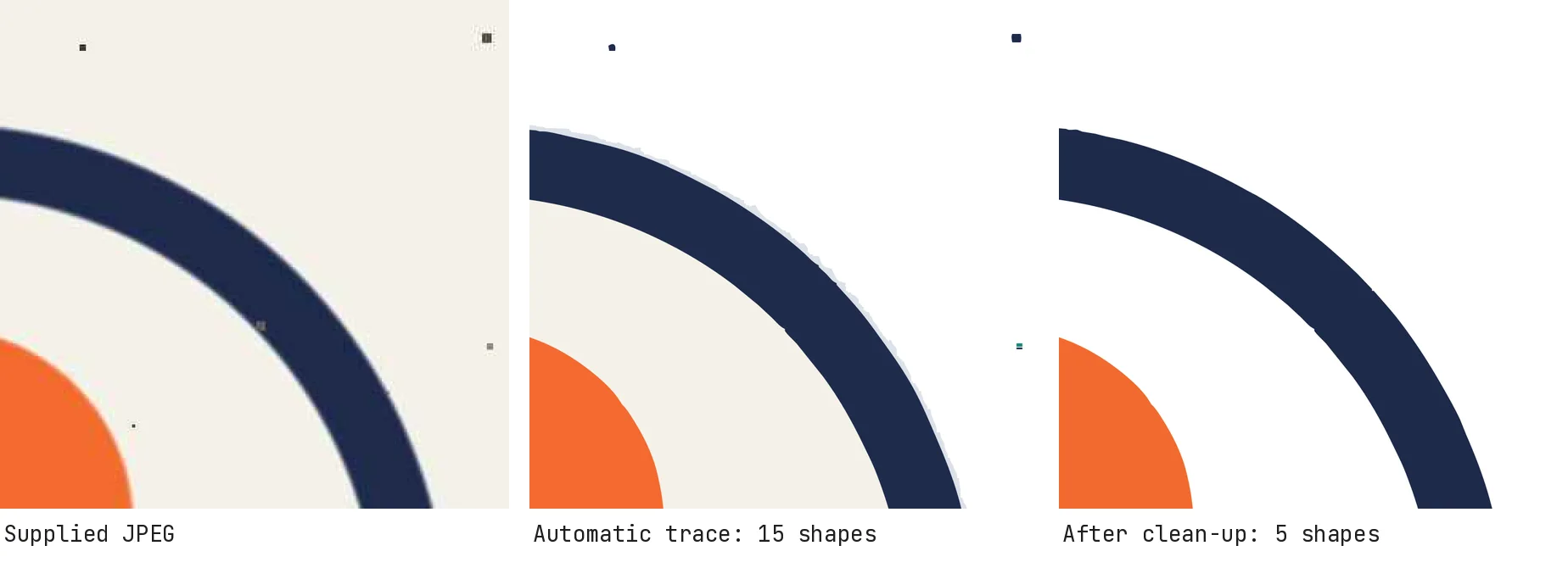
The automatic trace already took out the off-white page around the logo, and it kept the shapes and colours. But it also traced seven of the dust specks as small dots, and it drew a pale blue-grey fringe along the ring in three shapes. Raising Remove small regions under to 200 square pixels removed the specks. Deleting the fringe colour and typing the four brand colours brought it to 5 shapes in 4 colours.
The colours had drifted too. The navy came out as #1F2B4B instead of #1D2A4A, the orange as #F56A31 instead of #F26A2E, and the inside of the ring as the off-white of the page. Those differences are small on screen, but they matter when a brand is printed next to its own packaging or signage. This is one invented logo, so read it as an example, not a benchmark.
How to clean up a logo in VKTR Studio
1. Get the best copy you can
Ask for the file the logo was first made in, or the first copy that was sent, not a screenshot or a forwarded image. Every extra JPEG save and every screenshot adds more dirt. A better source saves more time than any setting.
2. Open it in VKTR Studio
Drop the image into VKTR Studio. It takes JPG, PNG, WebP and HEIC, up to 5 MB on a free account. VKTR analyses the image and picks its settings. When it finds JPEG compression or grain, it cleans it up before tracing and tells you it did.
3. Clear the specks
Open Advanced settings and raise Remove small regions under (in black and white mode it is called Remove specks under). It drops colour patches smaller than the size you set, in square pixels. Raise it step by step and stop when the dust is gone but small parts of the logo, such as dots and thin points, are still there.
4. Check the background
A white or off-white page is taken out automatically. A cream or coloured background is kept, because it may be part of the design. If it should go, set Background removal to On. Clear enclosed background areas also clears the same colour inside closed shapes, such as the inside of a letter O. An area that touches several colours may be kept, as the inside of the ring was in our test: recolour or delete it by hand.
5. Fix the colours last
Settings come first, because changing a setting traces the image again and discards your edits. Then use Colours in the result: clicking a colour selects every shape of that colour and opens the colour picker. Type the brand's hex code to correct a colour, or press Delete to remove a fringe colour that should not be there.
6. Zoom in and download
Check the edges at 400%, then download SVG, PDF, EPS or DXF. Keep the cleaned file as the new master, so nobody has to clean it again.
Where do the right colours come from?
A tracer can only give you the colours it sees, and a dirty file has already shifted them. The exact codes should come from the brand: a brand guide, the original design file, or the client. If nobody has them, pick the colour from the cleanest, largest area of the logo and ask the client to approve it before anything is printed.
If you are changing a logo's colours on purpose, for example making a white version for a dark background, our guide on how to change a logo's colour covers that. For a logo with a background you want gone completely, see how to make a logo transparent.
What clean-up cannot fix
Clean-up removes dirt and corrects colour. It does not bring back detail that was never in the file:
- A logo that is too small. Small lettering and thin lines may already be lost. See the pixelated logo guide.
- Wobbly edges. A trace follows the edges it is given. In our test the cleaned ring still had slight bumps where the JPEG had blurred it. On a large sign, a designer may need to redraw perfect circles and straight lines.
- Lettering that has changed shape. If the letters are blurred into each other, a designer should set the words again in the brand's typeface.
When you do need a designer, a clean trace is still a good starting point, because it shows the shapes and colours to match. Our guide on how much it costs to vectorize a logo explains when a redraw is worth paying for. Once the logo is clean, save the full set of logo file types from it so the dirty copy is never used again.
Cleaning up a logo: questions and answers
- Can I clean up a JPEG logo without converting it to a vector?
- You can retouch the pixels in a photo editor, but the result is still a JPEG with a fixed size, and saving it again can add new compression damage. Tracing it into a vector removes the noise once and gives you a file that scales.
- Why does my logo have a light outline after removing the background?
- The edge pixels in a compressed or smoothed image are a blend of the logo colour and the background. A tracer can turn that blend into a thin shape of its own. Delete that colour's shapes, or see the make a logo transparent guide for more on halos.
- Will raising Remove small regions under delete parts of my logo?
- It can, if you raise it too far. Small dots, the points of thin shapes and full stops in text are small regions too. Raise it in steps and zoom in to check them each time.
- Is cleaning up a logo the same as redesigning it?
- No. Clean-up keeps the logo as it is and removes damage. A redesign or a redraw changes or rebuilds the shapes, and that is work for a designer.