Guides8 min read
PDF to SVG: Open a Vector PDF, Trace a Scanned One
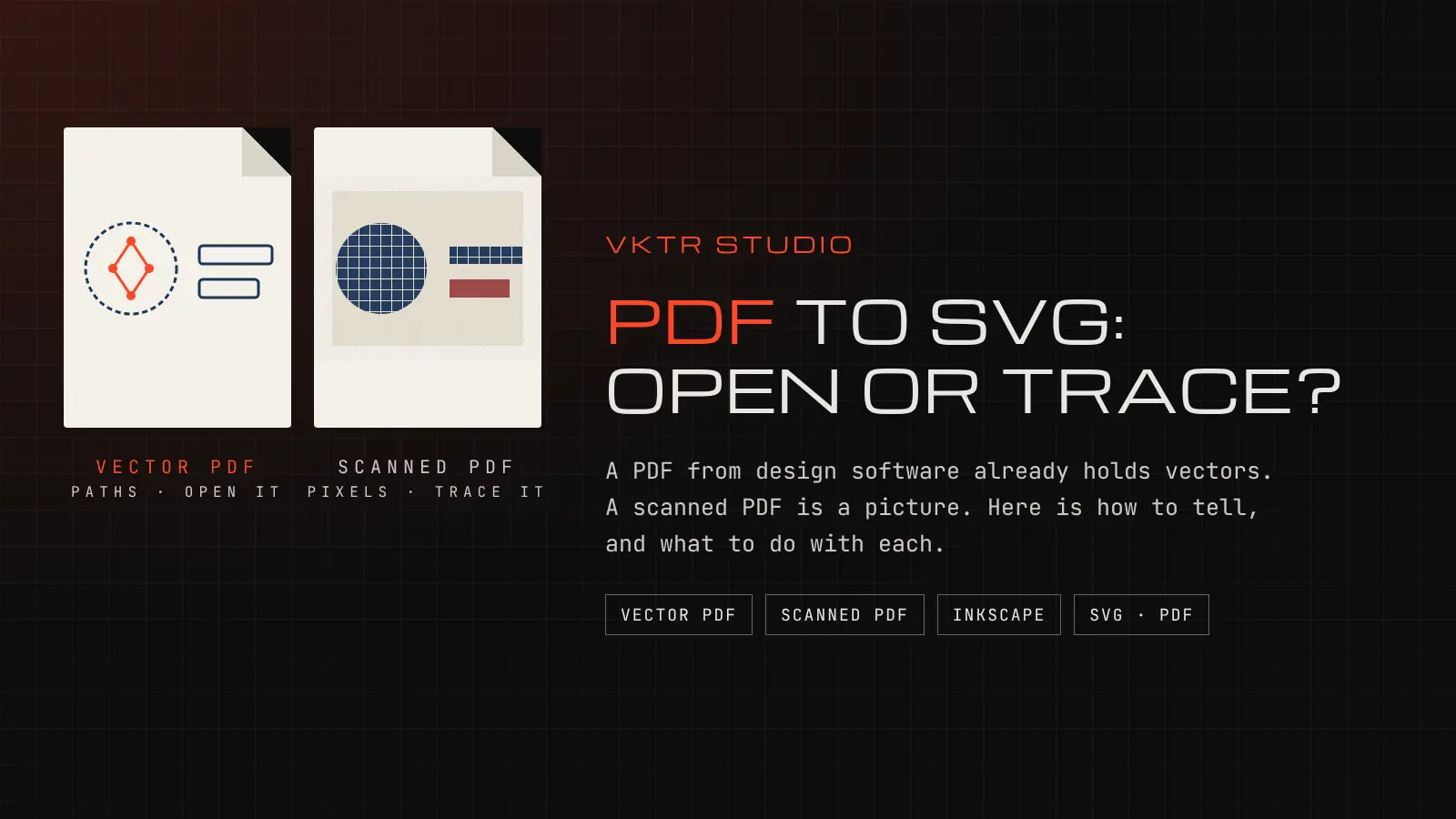
Most PDF to SVG converters do the same thing to every file. That works for a PDF exported from design software, and quietly fails for a scanned one. Here is how to tell the two apart and what to do with each, tested on both kinds of PDF of the same logo.
Key takeaways
- A PDF exported from design software usually holds vector shapes already. Open it in Inkscape or Illustrator and save it as SVG: no tracing needed.
- A scanned PDF holds one picture of the page. Converting it straight to SVG only wraps that picture in an SVG file; nothing becomes vector.
- In our test, the vector PDF became an SVG of 4 paths and no images. The scanned PDF of the same logo became an SVG of 0 paths and 1 embedded picture.
- For a scanned PDF, export the page as a 300 PPI PNG, trace it, and check the edges. VKTR Studio does the tracing but cannot open PDF files itself.
To convert a PDF to SVG, first check what the PDF holds. If it was exported from design software, the shapes are already vectors: open it in Inkscape or Illustrator and save it as SVG. If it is a scan, it holds only a picture, so export the page as a PNG and trace it into vector shapes. Online PDF to SVG converters do not make this choice for you, and on a scanned PDF they return a picture inside an SVG file.
This guide is for anyone who has a logo, drawing or artwork as a PDF and needs an SVG for a website, a cutting machine, a laser or a printer. It is honest about one thing up front: VKTR Studio cannot open PDF files. It traces PNG, JPG, WebP and HEIC images, which is the step a scanned PDF needs.
Two kinds of PDF that look the same
PDF is a container. The same page can be stored in two very different ways, and a PDF viewer shows both the same at normal size:
- A vector PDF is exported from design software such as Illustrator, Inkscape or Affinity Designer. Its shapes and text are stored as outlines and letters, so they stay sharp at any size. Converting it to SVG is a change of format, not a rebuild.
- A scanned PDF comes from a scanner, a phone scanning app or a screenshot saved as PDF. Each page is one picture made of pixels. There are no shapes in it to convert, so it has to be traced.
- A mixed PDF holds both: for example vector text with a logo placed as a PNG. The text converts cleanly; the logo stays a picture until you trace it.
For the difference between the formats themselves, see EPS vs SVG vs PDF. An Adobe Illustrator file is a close cousin: see AI to SVG.
Our test: one logo, a vector PDF and a scanned PDF
We made an invented logo (a navy circle with an orange diamond, a navy bar and a red bar; not a real brand) and saved it two ways on 18 November 2026. One was a vector PDF, as design software would export it. The other was a scan-like PDF: the logo rendered at 1200 by 600 pixels, blurred, given grain, saved as a JPEG and wrapped in a PDF. We then converted both straight to SVG with Poppler's pdftocairo, a free PDF tool, and counted what came out.
| Pictures inside | SVG from a direct conversion | |
|---|---|---|
| Vector PDF (1.3 KB) | None | 1.5 KB: 4 vector paths, no pictures |
| Scanned PDF (66 KB) | One 1200 x 600 JPEG | 84 KB: no paths, 1 embedded picture |
| Scanned page exported as a 300 PPI PNG, traced in VKTR Studio | Not a PDF | 3 KB: 4 vector paths in 3 colours, no pictures |

The vector PDF converted cleanly: 4 paths, the same shapes as the original. The scanned PDF also produced an .svg file, but it held no shapes at all, only the JPEG from the PDF. It looks fine at normal size and turns soft and grainy when enlarged, and a cutting machine or laser has no outline to follow.
Tracing the scanned page fixed that. VKTR Studio's own tracing code turned the 300 PPI PNG into 4 shapes in 3 colours, close to the original colours. Enlarged, the traced corners show small notches where the blur and grain were, which the vector PDF does not have. This is one invented logo, so read it as an example, not a benchmark. The lesson holds for any PDF: if a vector version exists, it beats any trace.
How to convert a PDF to SVG
1. Check what the PDF holds
Zoom in to 800% or more in any PDF viewer. Edges that stay sharp are vector shapes. Edges that turn soft or blocky, with grain on the page, are a picture. If you can select a word as text, that part is not a picture either. Our guide on what a vector file is covers more ways to tell.
On a computer with Poppler's free command-line tools, “pdfimages -list file.pdf” lists every picture inside the PDF. A vector PDF lists none, or only the photos in it. A scanned page lists one large image.
2. Vector PDF: open it in Inkscape or Illustrator
In Inkscape, open the PDF with File > Open. The PDF import dialog lets you choose the page and how fonts are handled. In Illustrator, use File > Open; for a PDF with several pages, Illustrator asks which pages to open.
Delete anything you do not need, such as the page background, crop marks or other text, so only the artwork is left.
3. Check the fonts, then save as SVG
If the PDF has text and its fonts are not installed on your computer, the editor swaps in other fonts. Compare the letters with the PDF before you save. If they differ, install the font or ask the sender for a copy with the text converted to outlines.
In Illustrator, choose File > Export > SVG (svg). In Inkscape, save as Plain SVG, which leaves out Inkscape's own editing data.
4. Scanned PDF: export the page as a PNG
A scanned page is a picture, so it has to be traced. First export it as an image, for example with Poppler's free command “pdftocairo -png -r 300 -singlefile file.pdf page”, which writes the first page as a 300 PPI PNG. Crop it to the logo or drawing you need.
5. Trace the PNG and check it
Drop the PNG into VKTR Studio. It traces the picture into vector shapes in your browser and downloads SVG, PDF, EPS or DXF. Images up to 5 MB are free to convert; a free account downloads 2 files a day. Zoom in on corners and small details and compare them with the scan before you download.
Why online PDF to SVG converters can mislead
A direct converter rewrites what is in the PDF as SVG. Vector shapes become SVG paths, and pictures become SVG image elements with the pixels inside. The file name ends in .svg either way. To check a result, open the SVG in a text editor and search for “<image”: if the artwork is an image element, it is still a picture. Our guide on why an SVG is not editable explains this case in more detail.
Text is the other trap. A vector PDF may use fonts you do not have. Inkscape's PDF import can substitute missing fonts or draw them as shapes, and since version 1.4.3 it substitutes them by default. Substituted letters can look slightly different, so compare them with the PDF before the file goes to print.
When you should ask for the original instead
- The PDF is a scan of a printed logo. Ask the owner or designer for the file it was printed from. A trace is a good rebuild, but it is still a rebuild.
- A printer asked you for an open or vector file. Our guide on what to send when a printer asks for an open file explains which file they mean.
- The scan is small or blurred. Tracing cannot bring back detail that is not in the pixels. Scan it again at 300 PPI or more if you have the paper copy.
If you only have a PNG or JPG of the artwork and no PDF at all, the same tracing step applies: see the JPG to SVG converter or how image tracing works.
PDF to SVG: questions and answers
- Can VKTR Studio convert a PDF to SVG?
- Not directly: it cannot open PDF files. It traces PNG, JPG, WebP and HEIC images. For a scanned PDF, export the page as a PNG and trace that. A vector PDF needs no tracing: open it in Inkscape or Illustrator and save it as SVG.
- Does every PDF hold vector shapes?
- No, only if it was made that way. A PDF exported from design software usually holds vector shapes. A PDF from a scanner or a phone scanning app holds a picture of the page, even though the file is a PDF.
- Why is my SVG from a PDF still blurry?
- The PDF most likely held a picture, so the converter put that picture inside the SVG. Open the SVG in a text editor: an “<image” element means it is still pixels. Trace the picture to turn it into vector shapes.
- How do I convert a PDF with several pages to SVG?
- SVG holds one page. In Illustrator, choose the pages when you open the PDF; in Inkscape, pick the page in the PDF import dialog. Save each page as its own SVG.
References
- Import PDF files in Illustrator (Adobe Help)
- Export SVG from Illustrator (Adobe Help)
- Inkscape command-line manual: PDF import and Plain SVG export (Ubuntu manpages)
- Inkscape 1.4.3 release notes: PDF import changes
- pdftocairo manual (Poppler)
- VTracer, an open-source tracer VKTR Studio uses (Vision Cortex)