Guides13 min read
How Image Tracing Works: Inside Image Trace, Potrace and VTracer
Every tracer, from Illustrator’s Image Trace to Inkscape’s Trace Bitmap, works through the same few steps. What happens at each one, what the research says, and why a traced logo still needs a human check.
Key takeaways
- Image tracing redraws pixels as vector paths in a fixed sequence: reduce the image to a few colours, follow the outline of each colour region, simplify it into a polygon, fit smooth Bézier curves, and decide which bends are corners.
- Classic tracers, including Illustrator’s Image Trace, Potrace (inside Inkscape) and VTracer, follow the pixels. Generative tools such as Illustrator’s Concept to Vector redraw the picture, and Adobe says the result is a stylised version of the image.
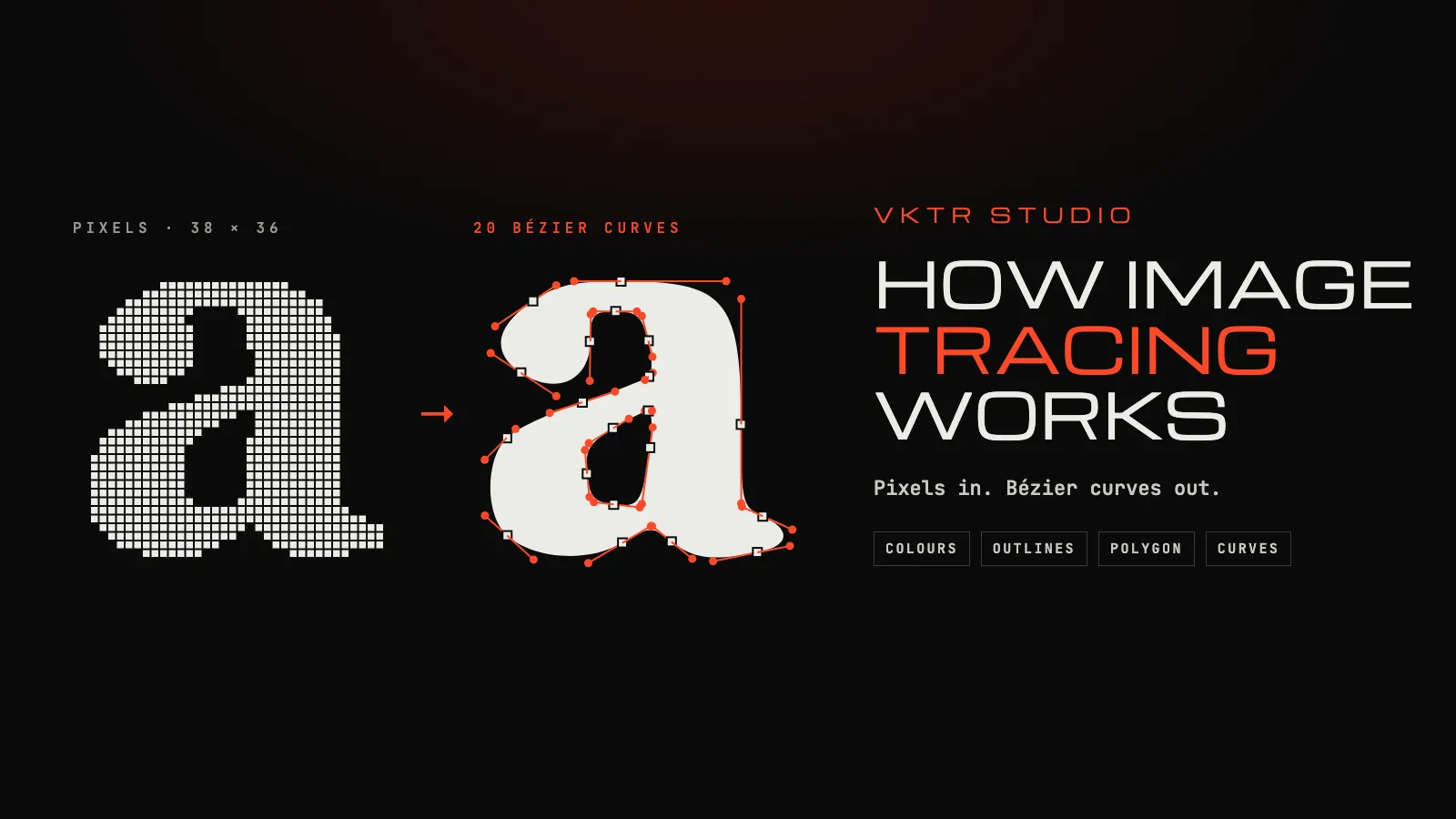
- When we ran a Potrace port on a 38 × 36-pixel letter, it became a 29-vertex polygon, then 29 Bézier segments, then 20 after curve optimisation.
- A tracer can’t add detail the pixels don’t contain. Start from the largest, cleanest image, and check small lettering, corners and thin lines by eye.
Image tracing is the automatic redrawing of a pixel image as vector shapes. The software finds areas of colour, follows the edge of each one, and replaces the staircase of pixels along that edge with a few smooth curves you can scale and edit. Adobe Illustrator calls it Image Trace, Inkscape calls it Trace Bitmap, and the same idea runs inside online converters, including our own, VKTR Studio.
The details differ, but almost every tracer works through the same five steps. Knowing them explains the settings, the failures, and the current arguments about AI.
Step 1: Reduce the image to a few flat colours
A photo of a logo can contain tens of thousands of slightly different colours, from compression, shadows and the soft pixels along every edge. A tracer first decides which colours are real. In black-and-white mode that is a threshold: Adobe describes Illustrator’s Threshold slider as turning every lighter pixel white and every darker one black. In colour mode the tracer groups similar colours into a palette. Illustrator’s Colors slider sets how many; VKTR picks between 2 and 32 by itself. For a hand drawing, where the threshold matters most, see how to turn a sketch into a vector.
This step decides more of the result than any other. Too few colours and a shadow merges into the logo; too many and every JPEG speck becomes a shape of its own. Inkscape’s tutorial gives the same advice about its three input filters, brightness, edge detection and colour quantisation: try each one, because no single filter suits every image.
Step 2: Follow the outline of every region
With the colours settled, the boundary of each region is followed pixel by pixel. Potrace, Peter Selinger’s open-source tracer and the engine behind Inkscape’s Trace Bitmap, walks along the corners between pixels, keeping black on one side and white on the other, until it returns to where it started. The result is a closed path made of tiny horizontal and vertical steps: an exact but ugly copy of the pixel edge.
This is also where noise is dropped. Potrace discards any path that encloses fewer pixels than its turdsize setting. Illustrator’s Noise option likewise ignores areas below a set size, and Adobe suggests 1 to 10 pixels for low-resolution images and 20 to 50 for high-resolution ones.
Colour images add a choice that Illustrator calls Method. Abutting cuts the regions like a jigsaw, so neighbouring paths share an edge exactly. Overlapping stacks them, so each path slightly overlaps the next. VTracer stacks by default, and its developers say this is why its output is much more compact than Image Trace’s: stacked shapes don’t need holes cut into them.
Step 3: Simplify the staircase into a polygon
Next the jagged boundary is approximated by straight lines. Potrace searches for the polygon with the fewest sides that still follows the pixel edge to within half a pixel, which is where its name comes from: polygon tracer. VTracer’s documentation says it skips that expensive search in favour of a fast, linear pipeline that stays faithful to high-resolution images.
This step is what turns a shallow diagonal, drawn in pixels as a long staircase, back into one straight line. Selinger’s paper explains why it is hard: tracing is not a local operation, because no fixed-size window of pixels can tell a staircase from a real step.
Step 4: Fit Bézier curves and decide the corners
The polygon is then smoothed into curves, almost always cubic Bézier curves: the curve type PostScript, PDF and SVG use, and the one you edit with Illustrator’s Pen tool. Each segment has two end points and two handles that set its direction and tension; what is a Bézier curve explains the maths.
The hard part is the corners. Selinger’s paper states the trade-off plainly: detect too many corners and the result looks like a polygon; detect too few and it looks smooth but too rounded. Potrace’s corner threshold, alphamax, defaults to 1. At 0 every vertex is a corner and the output is a polygon; above 4/3 there are no corners at all. Illustrator’s Corners slider does the same job, and a higher value gives more corners.
Curve fitting is older than any of these programs. Philip J. Schneider’s algorithm in Graphics Gems (1990) fits a cubic Bézier to a run of digitised points by least squares, and splits the run where the error grows too large.
Step 5: Optimise the curves and write the file
Finally, neighbouring curve segments that can be merged are joined, which cuts the number of anchor points you would otherwise have to edit. Potrace calls this curve optimisation, and its tolerance defaults to 0.2. The paths are then written out as SVG, PDF, EPS or another vector format.
The five steps on a real letter
To show the steps with real output rather than a diagram, we used the TypeScript port of Potrace that we keep in VKTR’s test tools. The input was a lowercase a in Georgia Bold, rendered 38 × 36 pixels and thresholded to black and white: 687 black pixels, an outer edge and the hole inside the letter. We traced it three times, changing only the settings described above.
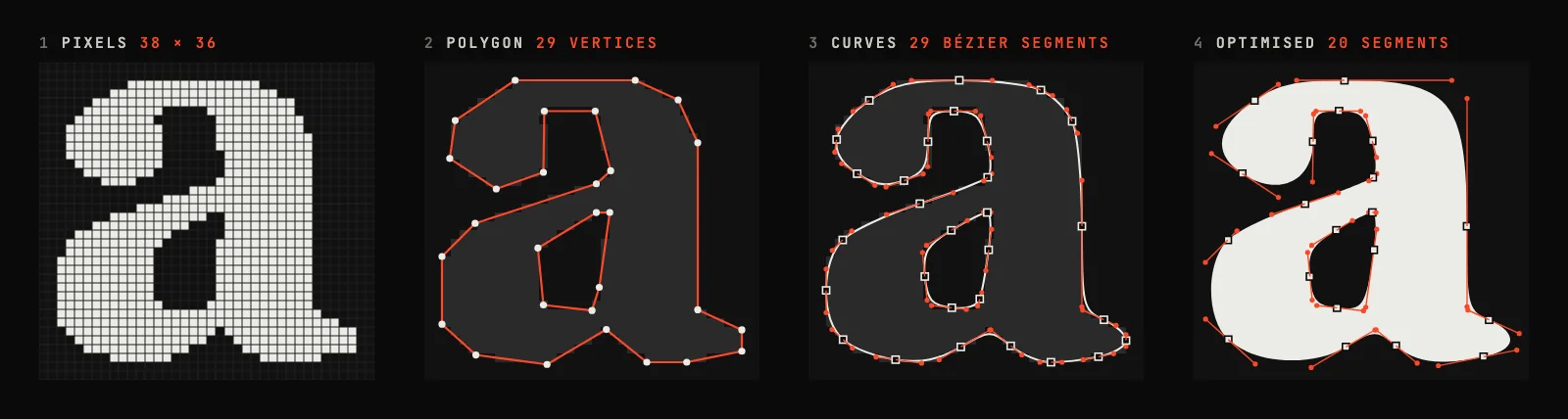
Two things stand out. The polygon and the curves have the same count, because Potrace replaces each polygon vertex with one curve segment or one corner. And at this tiny size the default threshold found no corners at all, so the serifs came out rounded: the trade-off Selinger describes. His paper is blunt about the limit, saying no tracing algorithm works well on very small images, such as a 10-point screen font at 75 dpi.
Image Trace in Illustrator: what the settings do
Illustrator’s Image Trace exposes the same pipeline as a panel (Window > Image Trace). Adobe’s documentation, last updated in February 2026, describes its options like this:
| Option | What it does, per Adobe | Step |
|---|---|---|
| Mode and Palette | Colour, grayscale or black and white; the number of colours, or a set palette | 1. Colours |
| Threshold | In black and white mode, lighter pixels turn white and darker ones black | 1. Colours |
| Noise | Ignores areas smaller than a set number of pixels | 2. Outlines |
| Method | Abutting (cut-out) or Overlapping (stacked) paths | 2. Outlines |
| Paths | How closely the traced shape follows the pixel shape | 3–4. Polygon and curves |
| Corners | How likely a sharp bend is to become a corner point | 4. Curves |
| Snap Curves To Lines | Straightens slightly curved lines and snaps lines near 0 or 90 degrees | 4. Curves |
| Expand | Turns the trace into editable vector paths | 5. Output |
The presets now come in enhanced versions with built-in support for gradients, live shapes (circles, squares and rectangles), transparency and auto grouping, depending on the preset; with the legacy presets you choose those options by hand. A trace stays live until you choose Expand, and Object > Image Trace > Release returns the original image.
Image Trace has a long history at Adobe. Illustrator CS2 introduced Live Trace in 2005, and Illustrator CS6 replaced it in 2012 with Image Trace, a new tracing engine with its own panel.
How to use Image Trace in Illustrator
1. Place the image
Choose File > Place, pick the PNG, JPG or other raster image, and place it on the canvas. Use the largest, sharpest copy you have: Image Trace can only follow edges that are in the pixels.
2. Open the Image Trace panel
Select the image with the Selection tool and choose Window > Image Trace. The panel’s options are active only while an image is selected.
3. Choose a preset
Pick a preset such as Black and White, Low Color or High Color from the icons at the top of the panel or the Preset menu. Enhanced presets add gradients, live shapes, transparency and auto grouping where they suit the preset; with legacy presets you set those options yourself.
4. Adjust the advanced options
Open Advanced and tune Paths (how tightly the outline follows the pixels), Corners (how readily a bend becomes a corner) and Noise (the smallest area that is traced). Choose Abutting for cut-out paths or Overlapping for stacked ones.
5. Expand the result
Compare the trace with the original at the size you will use it, then click Expand to turn it into editable paths. Object > Image Trace > Release discards the trace and brings back the image.
Does image trace use AI?
Searches for “AI image trace” are rising in Google Trends, and the phrase covers two very different things.
Classic tracers, including Image Trace, Potrace, AutoTrace and VTracer, follow the pixels: every path they write comes from an edge that exists in the image. Adobe documents Image Trace among Illustrator’s tracing tools and lists Concept to Vector separately, among its generative AI features. Concept to Vector creates new vector artwork from an image and an optional prompt, with a choice of partner models including GPT Image, Gemini and FLUX. Adobe says that without a prompt, an image that isn’t a sketch comes back as “a stylized version of the image”.
That difference matters for logos. A tracer can lose detail, but it doesn’t invent any. A generative model can redraw a letter, a proportion or a symbol, which is the opposite of what a brand file needs. For illustration and concept work the generative route is useful; to reproduce an existing logo, classic tracing plus a human check is still the safer path.
Research is moving fast. Differentiable rasterisation, published by Tzu-Mao Li and colleagues at SIGGRAPH Asia 2020, lets a computer adjust vector shapes by comparing their rendering with the target image, and LIVE (CVPR 2022) builds an SVG layer by layer that way. StarVector goes further and has a multimodal language model write SVG code directly. A 2023 review that tested several machine-learning vectorizers found them slow and not accurate to the original image, and concluded that every method it tested still needed human control.
VKTR Studio is on the classic side. It traces with VTracer, an open-source tracer written in Rust, and adds its own steps around it: separating a logo into objects, lines of text and words, and turning smooth colour ramps into real gradient fills. In browsers that support it, learned models clean up JPEG damage and enlarge very small images before tracing. They approximate fine detail rather than recover it, so the result still needs checking.
Image Trace, Potrace, AutoTrace and VTracer compared
| Tracer | Where you find it | Input | Approach | Licence |
|---|---|---|---|---|
| Image Trace | Adobe Illustrator | Colour, grayscale, black and white | Abutting or overlapping fills, or strokes; enhanced presets add gradients, live shapes and auto grouping | Commercial |
| Potrace | Command line; inside Inkscape’s Trace Bitmap, FontForge and others | Black-and-white bitmaps | Optimal polygon, then Bézier curves with corner detection and curve optimisation | GPL |
| AutoTrace | Command line; an option in Inkscape | Colour and black and white | Outline tracing and centerline tracing | GPL program, LGPL library |
| VTracer | Command line, Python and JavaScript libraries; VKTR Studio | Colour and black and white | Linear pipeline; stacked or cut-out regions; pixel, polygon or spline output | MIT |
Selinger’s 2003 paper compared Potrace with AutoTrace on a detail from Stanford University’s seal: Potrace took 0.27 seconds against 1.69, and wrote a 15,790-byte EPS against 39,788 bytes. Those are 2003 versions on 2003 hardware, so read them as history rather than a benchmark.
Why traces go wrong, and how to get a better one
- The image is too small. A tracer can only follow edges that exist. Selinger’s paper says tracing “cannot be used to generate information that is not already present”. Start from the largest original you can find, not a screenshot or a forwarded copy.
- JPEG compression. Blocks and halos around sharp edges turn into specks and wobbly outlines. Raise the noise setting, or use a tool that cleans compression damage before tracing.
- Thin lines and small lettering. Strokes one or two pixels wide break up or thicken. Trace from a large copy, then check every letter at the size it will be used.
- Gradients and shadows. Older tracers cut a smooth ramp into flat stripes. Illustrator’s enhanced presets and VKTR write real gradient fills instead; check that a soft shadow hasn’t merged into the artwork.
- Too many colours. A photo traced in full colour produces thousands of small paths that are hard to edit. For a logo, fewer colours are usually closer to the original.
- Rounded corners, or bumpy curves. Adjust the corner setting (Corners in Illustrator, alphamax in Potrace) and compare with the original at high zoom.
After any trace, compare the result with the source at its final size, simplify paths with too many anchor points (Inkscape’s Path > Simplify, Ctrl+L, does this), and fix whatever the tracer misread. Inkscape’s own tutorial is honest about the goal: its tracer is not meant to produce an exact duplicate or a finished product, only a set of curves to work from. If the tracing is for print, how to fix a pixelated logo for printing covers the checks that matter.
Image tracing questions
- How does image trace work?
- It reduces the image to a few flat colours, follows the outline of each colour region, simplifies each outline into a polygon, fits smooth Bézier curves while deciding which bends are corners, and writes the result as vector paths.
- Does image trace use AI?
- Illustrator’s Image Trace, Potrace and VTracer are classic algorithms that follow the pixels. Adobe lists Concept to Vector, which creates new vector artwork with generative models, separately among its generative AI features, and says that without a prompt it returns a stylised version of the image.
- Why is Image Trace greyed out in Illustrator?
- Adobe says the Image Trace panel’s options are active only when an image is selected. Select the placed raster image itself with the Selection tool; a vector object or an empty selection leaves the panel inactive.
- Is there a free alternative to Illustrator’s Image Trace?
- Yes. Inkscape’s Trace Bitmap, based on Potrace, is free and open source; Potrace and AutoTrace run from the command line; and VKTR Studio traces in the browser, with no account needed to convert, preview and edit. Downloading from VKTR needs a free account.
- What is Potrace?
- A free, open-source tracer by Peter Selinger, described in his 2003 paper. It turns black-and-white bitmaps into smooth Bézier outlines, it is built into Inkscape’s Trace Bitmap, and its name stands for polygon tracer.
- What is VTracer?
- An open-source tracer from visioncortex, written in Rust and released under the MIT licence. Unlike Potrace it handles colour images, and it can write pixel, polygon or spline paths.
- What is the difference between Image Trace and Live Trace?
- Live Trace was Illustrator’s tracing feature from Creative Suite 2, announced in 2005. Illustrator CS6 replaced it in 2012 with Image Trace, a new tracing engine with its own panel.
- Can you trace a photo into a vector?
- Yes, but the result is a stylised illustration made of many flat or gradient shapes, not a photographic copy. To print a photo, keep the original high-resolution image.
- How do I get a cleaner trace?
- Start from the largest, sharpest original, remove the background, use only as many colours as the design really has, raise the noise setting for JPEGs, then check corners and small text against the original.
References
- Peter Selinger: Potrace, a polygon-based tracing algorithm (2003)
- Potrace: home page
- Adobe: Vectorize images using Image Trace
- Adobe: Image Trace panel options in Illustrator
- Adobe: Generate vector artwork from raster images (Concept to Vector)
- Inkscape: Tracing bitmaps tutorial
- visioncortex: VTracer
- AutoTrace
- Li, Lukáč, Gharbi and Ragan-Kelley: Differentiable Vector Graphics Rasterization for Editing and Learning (SIGGRAPH Asia 2020)
- Ma et al.: Towards Layer-wise Image Vectorization (CVPR 2022)
- Rodriguez et al.: StarVector, Generating Scalable Vector Graphics Code from Images and Text
- Dziuba, Jarsky, Efimova and Filchenkov: Image Vectorization, a Review (2023)
- Schneider: An Algorithm for Automatically Fitting Digitized Curves, Graphics Gems (1990)
- TidBITS: Adobe Announces Creative Suite 2 (4 April 2005)
- TechRadar: Adobe Illustrator CS6 review (20 May 2012)