Guides7 min read
AI to SVG: Convert an Illustrator File, With or Without Illustrator
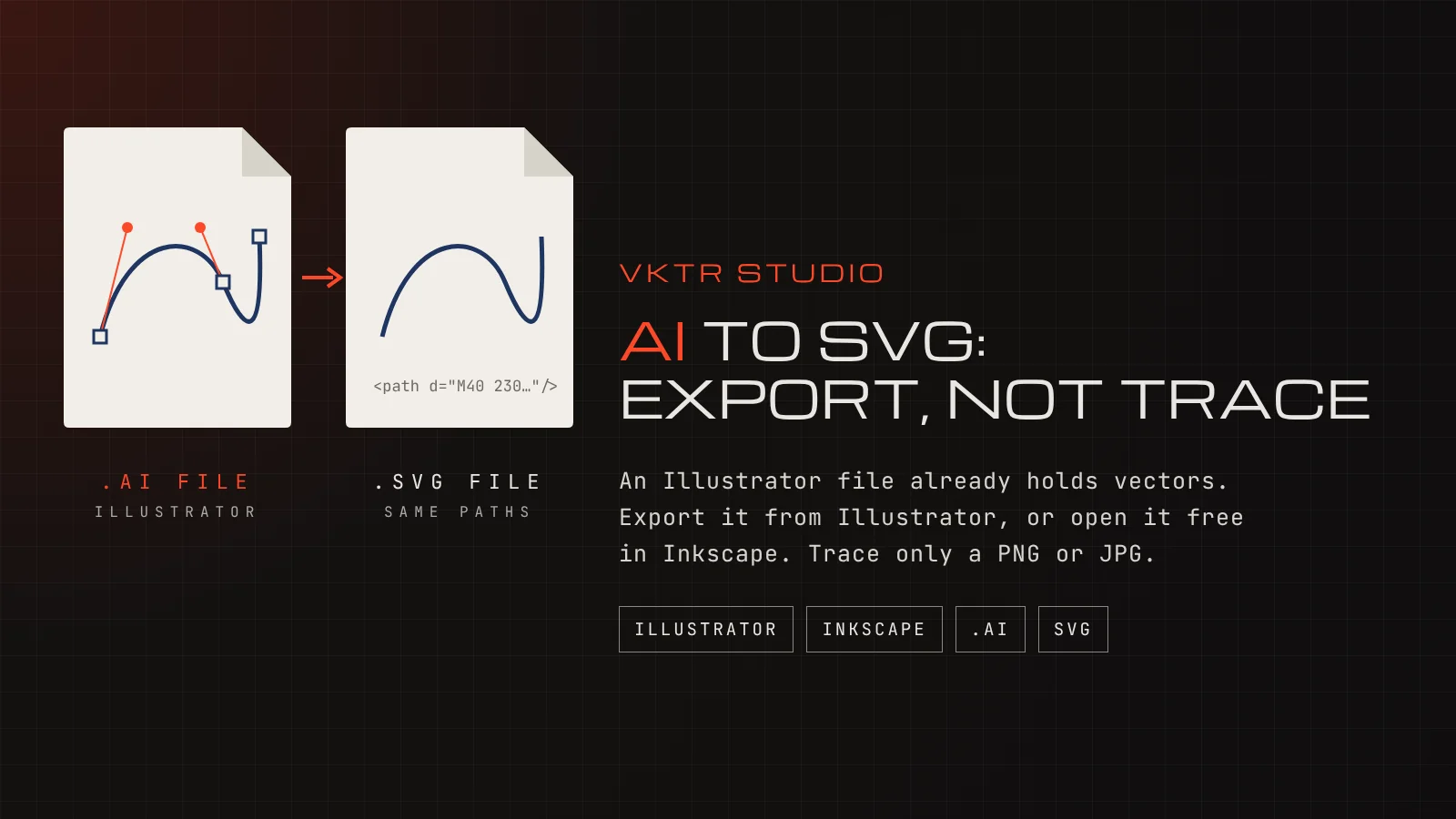
An .ai file already holds vector shapes, so turning it into an SVG is a change of format, not a rebuild. Here is how to do it with Illustrator, without it, and what to do when the file opens blank or all you have is a picture.
Key takeaways
- An .ai file from Adobe Illustrator already holds vector shapes. Converting it to SVG is a change of format: no tracing needed.
- With Illustrator, choose File > Export > Export As and pick SVG. Convert text to outlines if the people using the SVG may not have your fonts.
- Without Illustrator, the free app Inkscape opens most .ai files, because they usually carry a PDF copy of the artwork. Save the result as Plain SVG.
- If the .ai file opens blank, ask for a copy saved with Create PDF Compatible File on. If you only have a PNG or JPG, trace it instead.
To convert an AI file to SVG, open it in Adobe Illustrator and choose File > Export > Export As, then SVG. Without Illustrator, open the .ai file in the free app Inkscape and save it as Plain SVG. Both keep the vector shapes as they are. Tracing is only needed when all you have is a PNG or JPG of the artwork.
This guide is for anyone who has received an Illustrator file, or needs an SVG of artwork that was made in Illustrator, for a website, a cutting machine, a laser or a printer. One thing up front: VKTR Studio cannot open .ai files. It traces PNG, JPG, WebP and HEIC images, which is the step you need only when the .ai file is missing.
If you searched for “AI to SVG” meaning a picture made by an AI image tool such as ChatGPT, that is a different job: the picture is pixels and needs tracing. See how to convert a ChatGPT logo to SVG.
What is inside an .ai file
An .ai file is Illustrator's own working format. It keeps everything Illustrator needs to edit the artwork: paths, layers, text and effects. When Illustrator saves it with Create PDF Compatible File turned on, it also stores a PDF copy of the artwork inside. That PDF copy is what lets other apps open an .ai file at all.
An SVG is a different kind of file: plain text in XML that describes the shapes, which browsers and cutting software read directly. Our guide on what an SVG file is explains it in more detail. Going from .ai to SVG moves the same shapes into a new container. Nothing has to be redrawn.
| What you have | Route | What you get |
|---|---|---|
| .ai file and Illustrator | File > Export > Export As > SVG | The same vector shapes as SVG |
| .ai file, no Illustrator | Open it in Inkscape, save as Plain SVG | The vector shapes, with gradient meshes and blending modes approximated |
| .ai file that opens blank | Ask for a PDF-compatible copy, or an SVG or PDF export | A file other apps can read |
| Only a PNG or JPG | Trace it | New vector shapes rebuilt from the pixels |
How to convert an AI file to SVG
1. Check what you have
Look at the file name. An .ai file is the working file from Adobe Illustrator, and it holds vector shapes. A .png or .jpg of the same artwork is a picture made of pixels, even if it was exported from Illustrator. The two need different routes: an .ai file is converted, a picture is traced.
2. With Illustrator: export as SVG
Open the .ai file in Illustrator and choose File > Export > Export As, then pick SVG as the format. Adobe's guides also name File > Export > SVG (svg), and File > Export Selection to export only the selected artwork.
In the SVG Options dialog, the Font menu matters most. If the people who will use the SVG may not have your fonts, convert the text to outlines first, as our guide on vectorizing text shows. Minify writes smaller code, which suits websites.
3. Without Illustrator: open it in Inkscape
Inkscape is free and opens most .ai files with File > Open, because a modern .ai file usually carries a PDF copy of the artwork inside. Inkscape's own wiki notes the limits: gradient meshes are approximated by many small paths, and transparency (blending) modes do not work.
Delete anything you do not need, compare the result with a PDF or picture of the original, then save it with File > Save As and choose Plain SVG, which leaves out Inkscape's own editing data.
4. If it opens blank, ask for a PDF-compatible copy
Illustrator has an option called Create PDF Compatible File. Adobe describes it as saving “a PDF representation of the document in the Illustrator file”, so that the file works with other Adobe apps. Inkscape, for example, reads that PDF copy. If the designer turned the option off, other apps may show an empty page or an error.
The fix is simple: ask whoever made the file to save it again with that option on, or better, to export an SVG or PDF for you directly.
5. Only have a PNG or JPG? Trace it
If the .ai file is lost and all you have is a picture of the artwork, trace it. Drop the PNG or JPG into VKTR Studio: it traces the picture into vector shapes in your browser and downloads SVG, PDF, EPS or DXF. Images up to 5 MB are free to convert; a free account downloads 2 files a day. Zoom in on corners and small text before you download.
What can change on the way to SVG
- Fonts. If the text stays as live text and the font is not installed where the SVG is opened, another font is shown. Convert text to outlines before export when the look must not change.
- Gradient meshes. Adobe notes that mesh objects are rasterized when artwork is saved as SVG, so they become pictures inside the SVG. Inkscape draws them as many small paths instead.
- Effects. Adobe notes that some effects can turn part of the SVG output into a raster object, so check any shape with an effect applied.
- Placed images. A photo placed in the .ai file stays a photo in the SVG. It does not become vector.
To check a finished SVG, open it in a text editor and search for “<image”. If your logo or shapes sit in an image element, that part is still pixels. Our guide on why an SVG is not editable covers this case.
Are online AI to SVG converters a good idea?
Online converters can work for simple files, but you are uploading someone's artwork to a third-party server, and you cannot see the import settings. For client work or an unreleased logo, a desktop app such as Inkscape keeps the file on your computer, and you can check fonts and colours before saving. Whatever you use, compare the SVG with the original before it goes to a printer or a cutter.
If your artwork is a PDF rather than an .ai file, the same logic applies: see PDF to SVG. For the difference between the formats, see EPS vs SVG vs PDF.
AI to SVG: questions and answers
- Can VKTR Studio convert an AI file to SVG?
- No, it cannot open .ai files. It traces PNG, JPG, WebP and HEIC images. An .ai file needs no tracing: export it as SVG from Illustrator, or open it in Inkscape and save it as Plain SVG. Use VKTR Studio when all you have is a picture of the artwork.
- Can I just rename an .ai file to .svg?
- No. Renaming changes only the name, not what is inside. An SVG is XML text, and an .ai file is Illustrator's own format, so the renamed file will not open as an SVG.
- Why does my .ai file open blank in Inkscape?
- Most likely it was saved without Create PDF Compatible File, so there is no PDF copy for other apps to read. Ask the person who made it to save it again with that option on, or to export an SVG or PDF for you.
- Will my fonts be kept when I convert AI to SVG?
- Only if the font is available where the SVG is opened. To keep the look exactly, convert the text to outlines in Illustrator before you export. The text will no longer be editable as text, so keep the .ai file as your editable master.