Guides7 min read
How to Vectorize an Image in Photoshop: What Actually Works, and What Doesn’t
Photoshop is built for pixels. You can pull a path out of a selection, but most tutorials stop there and call the result a vector. Here is exactly what Photoshop can and can’t do, the method that works for a one-colour logo, and what to use for everything else.
Key takeaways
- Photoshop has no command that turns a pixel image into vector artwork. Adobe’s tool for that is Image Trace, in Illustrator.
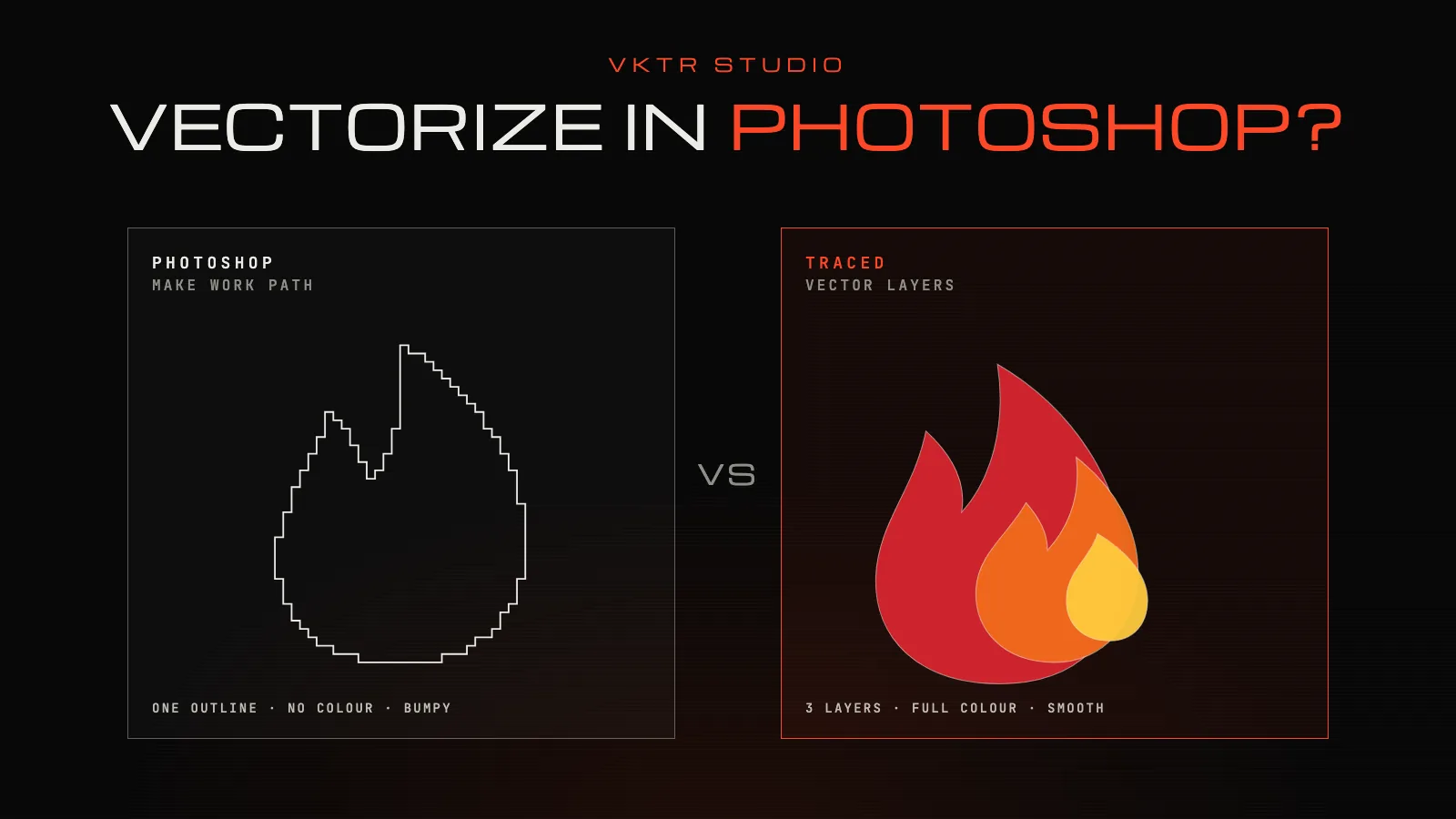
- The workaround (select the shape, Make Work Path, export the path) gives you an outline with no colour, one selection at a time, so it only suits simple one-colour shapes.
- Saving as Photoshop EPS doesn’t vectorize anything: only shape and type layers are kept as vectors, and a placed image stays pixels.
- For a full-colour logo, trace it instead. VKTR Studio turns a PNG or JPG into layered vector paths in your browser and downloads SVG, PDF, EPS or DXF, free to try.
Short answer: you can’t really vectorize an image in Photoshop. Photoshop edits pixels, and it has no command that converts a picture into vector shapes. What it can do is turn a selection into a path, which is enough for a simple one-colour shape and nowhere near enough for a full-colour logo.
Below: what Photoshop’s vector tools actually do, the step-by-step method that works for simple shapes, the mistakes most tutorials make, and the quickest way to get real vector artwork.
Can Photoshop vectorize an image?
Not automatically. Photoshop does have vector features: shape layers, the Pen tool, live type and paths. But they are for drawing new vector shapes, not for converting an existing picture. Adobe’s own tool for turning pixels into vector artwork is Image Trace, in Illustrator.
So when a tutorial promises to vectorize an image in Photoshop, it is really doing one of two things: turning a selection into a path, or redrawing the shapes by hand with the Pen tool.
What Photoshop can do: turn a selection into a path
Photoshop’s Make Work Path command converts a selection into a path, a vector outline you can export. Adobe notes that it removes any feathering and can change the shape of the selection, depending on how complex it is and the tolerance you choose, from 0.5 to 10 pixels. A higher tolerance uses fewer anchor points and draws a smoother path.
That makes it useful for one-colour artwork with clean edges: a black logo mark, a silhouette, a simple icon or a signature.
How to vectorize a simple logo in Photoshop, step by step
1. Start from the cleanest, largest image
Open the largest, sharpest copy you have and remove the background, so only the shape you want is left on its own layer. Every jagged pixel on the edge will end up in the path.
2. Turn it into pure black and white
Choose Image > Adjustments > Threshold and move the slider until the shape is solid black and the background solid white, with no grey left on the edges.
3. Select the shape
Use Select > Color Range and pick the black, or Ctrl-click (Windows) or Cmd-click (Mac) the layer thumbnail to load the shape as a selection.
4. Make a work path
In the Paths panel, choose Make Work Path from the panel menu and set a tolerance between 0.5 and 10 pixels. Lower values follow the edge more closely with more anchor points; higher values give a smoother path with fewer points. Try 1 pixel for a logo, then compare.
5. Export the path to a vector editor
Choose File > Export > Paths to Illustrator. Adobe describes this as exporting the document’s paths without pixels. Open the file in Illustrator or another vector editor, add a fill, and smooth any curves that came out bumpy.
Expect to tidy the result. A path made from a selection follows every bump in the pixels, and a logo with several colours needs a separate selection and path for each one, filled and lined up again by hand.
Why most Photoshop vectorizing tutorials go wrong
- “Save as Photoshop EPS and it’s vector.” Photoshop’s EPS keeps vector data only for shape and type layers, and only when Include Vector Data is ticked. A picture placed in the document stays pixels, and Adobe notes that the vector data is rasterized if you reopen the EPS in Photoshop.
- “The path keeps the colours.” A work path is an outline with no fill. A full-colour logo needs a separate path for every colour, each filled again in a vector editor.
- “A vector mask makes the image vector.” A vector mask only crops the layer with a vector edge. The pixels inside are unchanged, so enlarging still blurs them.
- “Sharpen and upscale first, then it’s vector.” Sharpening and upscaling make a bigger, cleaner-looking raster image. It is still pixels.
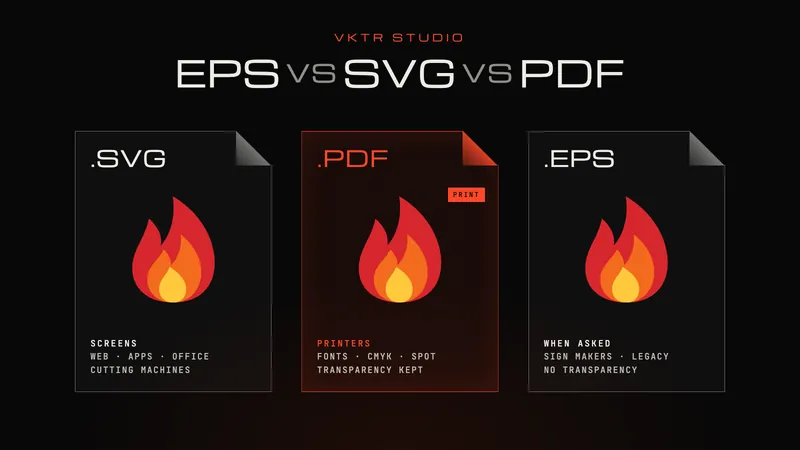
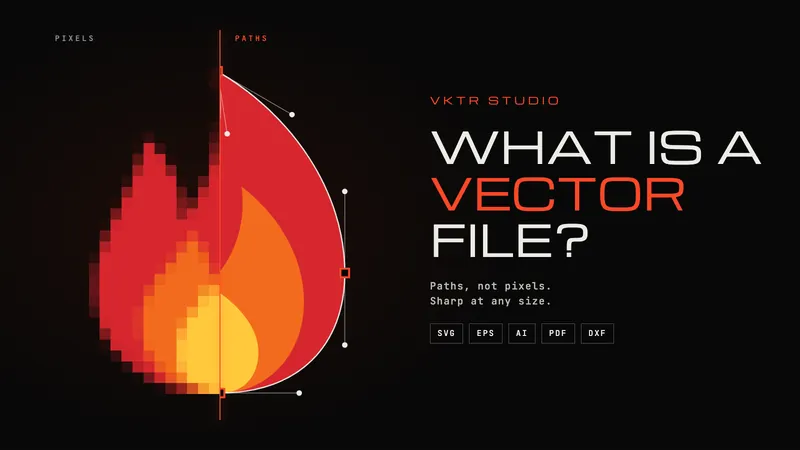
Not sure what you ended up with? Our guide to what a vector file is shows how to check, and EPS vs SVG vs PDF explains why an EPS saved from Photoshop is usually a pixel image.
Better tools for vectorizing an image
| Tool | Traces a full-colour image? | What you get |
|---|---|---|
| Photoshop | No: one selection at a time, outline only | A path to fill and finish in another app |
| Illustrator Image Trace | Yes, with presets and settings | Vector artwork to expand and clean up; needs an Illustrator subscription |
| Photopea (free, in the browser) | Yes: Image > Vectorize Bitmap | Vector layers set by number of colours and noise reduction, exported as SVG or PDF |
| Inkscape (free desktop app) | Yes: Path > Trace Bitmap | Paths to clean up in Inkscape |
| VKTR Studio (free to try, in the browser) | Yes, automatically | Layered vector paths to select, recolour and resize, as SVG, PDF, EPS or DXF |
The faster way: trace the image instead
If what you need is a usable vector version of a logo, trace it. VKTR Studio reads the image in your browser, picks its flat colours (2 to 32) and traces every shape into smooth bezier paths, grouped into layers: objects, lines of text and words. Select, move, resize or recolour any part, then download SVG, PDF, EPS or DXF at the width you need, in millimetres.
A one-colour mark goes through black-and-white mode, with the threshold set automatically: the same job as Photoshop’s Threshold-plus-Make-Work-Path routine, without the manual steps, and with the fill already in place.
Converting, previewing and editing are free with no account, and a free account gets one download a day, with no credit card. For the full walkthrough, see the logo to vector converter.
When you should stay in Photoshop
Photoshop is still the right tool for the pixel work around a logo: removing a background, retouching a photo, building a mockup or preparing a high-resolution raster image for print. Vectorize the logo once, then place the vector version into your Photoshop designs as a smart object (File > Place Embedded), which keeps it sharp at any size inside the design.
Frequently asked questions
- Can you vectorize an image in Photoshop?
- Not automatically. Photoshop has no command that converts a picture into vector shapes. Make Work Path turns a selection into a path, which suits simple one-colour shapes; for full-colour artwork use a tracing tool such as Illustrator’s Image Trace or VKTR Studio.
- How do I convert a JPG to a vector in Photoshop?
- Make the JPG black and white with a Threshold adjustment, select the black areas, choose Make Work Path in the Paths panel, then export the path with File > Export > Paths to Illustrator. The result is an unfilled outline you finish in a vector editor.
- Does saving as EPS in Photoshop make it vector?
- No. Photoshop’s EPS keeps vector data only for shape and type layers, when Include Vector Data is ticked. A placed photo or logo stays pixels inside the EPS.
- Why is my Photoshop path so bumpy?
- Make Work Path follows the edge of the selection, including jagged pixels. Raise the tolerance for a smoother path with fewer anchor points, or smooth the curves afterwards in a vector editor.
- Can I vectorize a photo in Photoshop?
- Not into true vectors. Filters can give a photo a poster-like look, but the result is still pixels. To turn a photo into vector art, use a tracer, and expect a stylised illustration rather than a photographic copy.
- Do I need Illustrator to vectorize an image?
- No. Illustrator’s Image Trace is one option, but free tools such as Inkscape, Photopea and VKTR Studio also trace images into vector paths.
- Is there a free Photoshop alternative that vectorizes images?
- Yes. Photopea, a free browser-based editor, has an Image > Vectorize Bitmap command, and Inkscape, a free desktop vector editor, has Trace Bitmap. VKTR Studio traces in the browser too, with the parts split into editable layers.
- What is the best way to vectorize a logo I made in Photoshop?
- Export it as a large PNG with a transparent background, then trace the PNG in a vectorizer such as VKTR Studio, which keeps the colours and splits the parts into layers. Download SVG, PDF, EPS or DXF.